
In late March 2026, attackers compromised a maintainer account for axios – one of the most widely used JavaScript HTTP client libraries, with over 100 million weekly downloads – and pushed two poisoned versions to npm. The malicious releases used a hidden dependency to silently download and install a Remote Access Trojan (RAT), software that gives an attacker persistent, covert access to your machine. This attack worked on any system that ran npm install during the three hours until this was detected. Developers and CI systems running code they had trusted for years found their credentials, source code, and SSH keys quietly sent to a remote server, all without any warning.
That’s a supply chain attack: instead of breaking into your systems directly, the attacker compromises the code you trust.
What you might not immediately connect to this story is that your IDE extensions are also part of the same supply chain. Every extension you install is code running on your machine, with access to your filesystem, terminal sessions, and potentially your credentials. Most IDEs – including VS Code – silently auto-update those extensions whenever a publisher pushes a new version. By default, it’s an unpinned dependency.
By pinning extension versions in your dev container configuration and treating updates as a deliberate review process, you can close the window that attackers rely on. Let’s look at how these attacks work in the VS Code ecosystem, why auto-updates are the enabler, and exactly how to defend against them.
How extension supply chain attacks work
The VS Code Marketplace hosts tens of thousands of extensions, and the barrier to publishing is relatively low. That openness creates a rich ecosystem – but it also creates an attack surface.
An attacker gains control of a popular extension through one of several routes. Sometimes publisher credentials are stolen through phishing or credential stuffing (automated login attempts using leaked username and password pairs from previous data breaches). Other times, a once-legitimate extension changes hands – the original developer sells or abandons it, and a new owner quietly takes over with malicious intent. Once in control, they push a new version with embedded malicious code. The Marketplace’s review process, while improving, has historically had gaps that allowed compromised updates to slip through before detection.
Researchers have documented waves of malicious extensions discovered in 2024 and 2025, including extensions impersonating popular tools like Zoom and Solidity packages to target crypto developers, as well as extensions delivering early-stage ransomware. Some downloaded obfuscated payloads while others gave attackers persistent, covert access to developer machines.
The common thread? The malicious code arrived as an update to something the developer had already chosen to trust.
The problem with auto-updates
Here’s where VS Code’s defaults work against you. Out of the box, extensions auto-update silently in the background. When a publisher pushes a new version, VS Code downloads and installs it without asking. There’s no changelog prompt, no confirmation dialog. The update just happens.
Nobody advocates for running npm update without checking what changed – dependency updates should go through pull requests, automated scans, and human review. At the same time, many of those same teams let their development tools update themselves with no oversight, creating a model where everything becomes trusted by default. You evaluated an extension when you first installed it, but then rely on the publisher to continue providing a secure product.
Part of the problem with this approach is that extensions will run code every time the extension is activated. If the extension is compromised, that code might be malicious. The fix isn’t to stop updating entirely – extensions ship real bug fixes and security patches. This is why updates should be intentional.
How to pin extensions in your VS Code settings
VS Code supports pinning extensions to a specific version using the extension@version syntax. In the Extensions view, you can right-click any extension, select Install Another Version, and choose the version you want. Once installed, right-click again and select Switch to Pre-Release/Release Version or pin that version so it doesn’t auto-update.
However, none of this matters without one critical user-level setting being disabled:
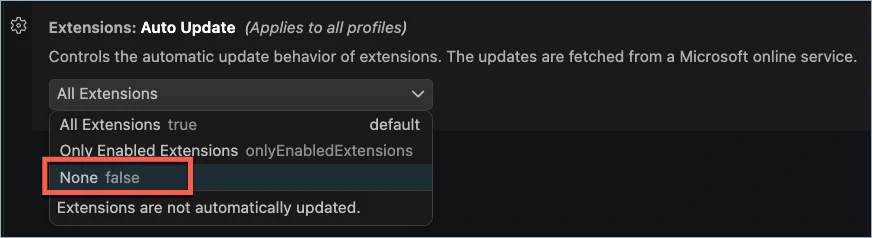
Without disabling extensions.autoUpdate, VS Code will silently upgrade your pinned extensions to the latest version anyway – defeating the entire purpose.
You also want to leave extensions.autoCheckUpdates set to true so that VS Code still notifies you when updates are available. This way you know when a new version exists, but can decide when to act on it. You’ll see a notification badge on the Extensions icon in the Activity Bar, and update indicators next to individual extensions.
You can also add these to your user settings by opening the Command Palette (Ctrl+Shift+P or Cmd+Shift+P on Mac) and selecting Preferences: Open User Settings (JSON):
This works well for individual developers, but it relies on every team member configuring their own VS Code correctly. That’s not ideal. What if you want to enforce pinned extensions across your entire project, regardless of each developer’s local settings? That’s where dev containers come in – infrastructure as code for your development environment.
Pinning extension versions in dev containers
If you’re not already familiar with dev containers, they’re Docker-based development environments defined by a devcontainer.json configuration file. Instead of each developer manually installing tools and extensions, the configuration describes everything the project needs – and everyone works from the same reproducible setup. I’ve
written about dev containers before, and they’re central to how this approach works.
The configuration typically lives at .devcontainer/devcontainer.json in your project root. If your project doesn’t have one yet, install the
Dev Containers extension and run Dev Containers: Add Dev Container Configuration Files from the Command Palette to generate a starter configuration.
Inside the customizations.vscode.extensions array, you list the extensions the dev container should install. You can pin each extension to a specific version by appending @version to the extension identifier:
Notice that each entry follows the format publisher.extensionname@version. You can find an extension’s identifier on its Marketplace page or in the extension detail panel inside VS Code. The available version numbers are listed in the extension’s Version History tab on the Marketplace page.
The key advantage over user settings is that dev container settings are treated as machine-level (remote) settings – they override the user’s local preferences inside the container. Even if a developer hasn’t disabled auto-updates in their personal configuration, the dev container will enforce the pinned versions. To take advantage of this, you just add the settings to the devcontainer.json:
When the dev container is built or rebuilt, these specific versions will be installed and used. If an extension’s publisher pushes a compromised update tomorrow, your environment won’t pull it in. To permanently update the extension, you will need to make an explicit edit to your configuration file, committed alongside your code. To make a temporary change, you can use the UI to update to the latest version.
This approach works across the entire dev container ecosystem. GitHub Codespaces, the Dev Container CLI, and any other compatible tools will all respect version pins. Everyone gets the same verified extensions at the same versions – no drift, no surprises.
Making updates a deliberate process
With pinning and notification in place, the remaining piece is establishing a lightweight review process for when you do decide to update. The goal isn’t an exhaustive audit – it’s a few minutes of checking that can surface obvious warning signs before you let new code run on your machine.
When VS Code notifies you that an update is available, run through these checks before bumping the version:
- Read the changelog or release notes for the new version. Legitimate updates describe what changed. A version bump with no explanation, or with vague “performance improvements” language that doesn’t match the size of the update, warrants caution. You may be able to also review the code.
- Review how long the update has been available. If the extension has been available for a 1-3 days without any reports of issues, that’s a good sign – but if it’s brand new, you might want to wait and see if any red flags emerge.
- Check for publisher or ownership changes. If the extension recently changed hands, that’s a meaningful risk signal. You can spot this on the Marketplace page – look at the publisher name and the “More Info” sidebar – or by searching for the extension name in community forums and GitHub.
- Review what the extension is allowed to do. If the extension’s source repository is public, check its
package.jsonfor changes – theactivationEventsfield shows what triggers cause the extension to run, and thecontributessection lists the VS Code features it hooks into. If a theme extension suddenly adds terminal or filesystem contributions, that’s a red flag. The Marketplace page’s “More Info” sidebar can also reveal changes in categories or supported environments. You can automate some of this analysis; just remember that it won’t tell you what code the activations actually execute. - Search for community reports. A quick search for the extension name combined with “malware,” “compromised,” or “security issue” can surface early warnings from other developers who noticed something wrong.
Once you’re satisfied, update the version number in your devcontainer.json, then rebuild the container and commit the change:
1"esbenp.prettier-vscode@12.0.0"That commit becomes an auditable trail – anyone reviewing your repository history can see exactly when an extension version changed and who approved it. If something goes wrong, you can identify which update introduced the problem and roll back to the previous pin.
This entire review takes a few minutes per extension update. Compare that to the potential cost of a compromised development environment – stolen credentials, poisoned build artifacts, or an attacker with persistent access to your machine – and the investment is clearly worth it.
Wrapping up
Trust shouldn’t be static, and your VS Code extensions carry risk. They run arbitrary third-party code on your machine, and by default your machine is likely configured to automatically install and use the latest version.
The practical defense is straightforward: pin your extension versions in devcontainer.json, disable auto-updates, keep update checks enabled, and review changes before you upgrade. The configuration lives in your repository alongside your code, so the entire team benefits automatically – and every version bump becomes a reviewable commit.
Supply chain security isn’t just a concern for large organizations. Any developer running a routine install or update command is a potential target. Your development tools are part of that chain – treat them accordingly.