
In the previous post, I mentioned that you can use Azure flexible federated identity credentials to secure your GitHub Actions workflows. If you’re not familiar with this feature, it is a preview designed to improve the way Azure works with federated credentials (such as OIDC tokens from GitHub Actions). More importantly, it provides more flexibility and security when configuring federated identity credentials for your applications in Microsoft Entra ID (formerly Azure AD).
Why flexible federation?
It’s easiest to explain with an example. Let’s start by reviewing some of the claims that exist in a typical OIDC token issued by GitHub Actions. For example:
  1   {
  2     "aud": "api://AzureADTokenExchange",
  3     "iss": "https://token.actions.githubusercontent.com",
  4     "sub": "repo:kenmuse/token-test:ref:refs/heads/main",
  5     "ref": "refs/heads/main",
  6     "sha": "398ea909a0eadd55f03e0a0d1f0df6b450d45671",
  7     "run_id": "6986609053",
  8     "workflow_ref": "kenmuse/token-test/.github/workflows/blank.yml@refs/heads/main",
  9     "job_workflow_ref": "kenmuse/token-test/.github/workflows/blank.yml@refs/heads/main",
 10     /* ... more claims ... */
 11   }
To make the login request to Azure, you must provide a Subscription ID along with the Client ID and Tenant ID of an Azure App registration that has been configured with the expected values for the sub, iss, and aud claims in the OIDC token. The App registration must know the exact values to expect for these claims. In addition, only these claims can be validated.
That restriction means you need a custom federated credential for each specific repository/branch/environment you want to support. You can’t use a wildcard to match multiple repositories or branches. This is normally a best practice that avoids accidental access, but it can quickly become unmanageable if you have many repositories or branches that need to use that App registration. To make matters worse, you are limited to 20 federated credentials per App registration.
This restriction also prevents you from validating or using other claims in the token to further restrict or customize access. For example, you cannot use the job_workflow_ref claim to restrict access to a specific workflow file and branch. This is the more challenging part, since it means that all workflows in a repository could potentially use the same App registration, even if you want to restrict access to only one workflow.
With flexible federated identity credentials, you can define a single federated identity credential that uses configurable expressions to match multiple repositories, branches, or specific claims. The expressions can be an exact match or use wildcard patterns, giving you much more control over how you configure access.
For example, you could use an expression like this to require a job that targets the production environment using the workflow main.yml on any branch starting with releases/v:
Now, rather than granting permission to any workflow in the repository, you can restrict access to a specific workflow. If you use reusable workflows, then this can be even more useful. The job_workflow_ref claim will always point to the workflow that contains the current job, which means you can restrict access to specific reusable workflows as well.
As an example, you could have a claim that validates the job originated from the token-test repository, targets that repository’s production environment, and is requesting the credentials for that environment from a reusable workflow defined in the common repository’s deploy.yml workflow on the main branch:
What’s supported?
At the moment, issuer and audience must be exact matches. The sub claim supports the eq (exact match) and matches (wildcard match) operators. If the issuer is https://token.actions.githubusercontent.com, then you can also use the job_workflow_ref claim with the same operators. You can also use the and operator to combine multiple expressions.
The matches operator supports two wildcard characters:
*– Matches zero or more characters. The patternrefs/heads/release/*would match any branch that starts withrelease/.?– Matches exactly one character. The patternrefs/heads/release/v?would matchrefs/heads/release/v1andrefs/heads/release/vA, but notrefs/heads/release/v10. To match a version with two characters, userefs/heads/release/v??.
These wildcards are very limited compared to regular expressions, but they are sufficient for the most common use cases.
The expressions do not support grouping with parentheses or the or operator at this time. That said, you can set up multiple federated credentials if you need to support different scenarios.
Setting up your registration
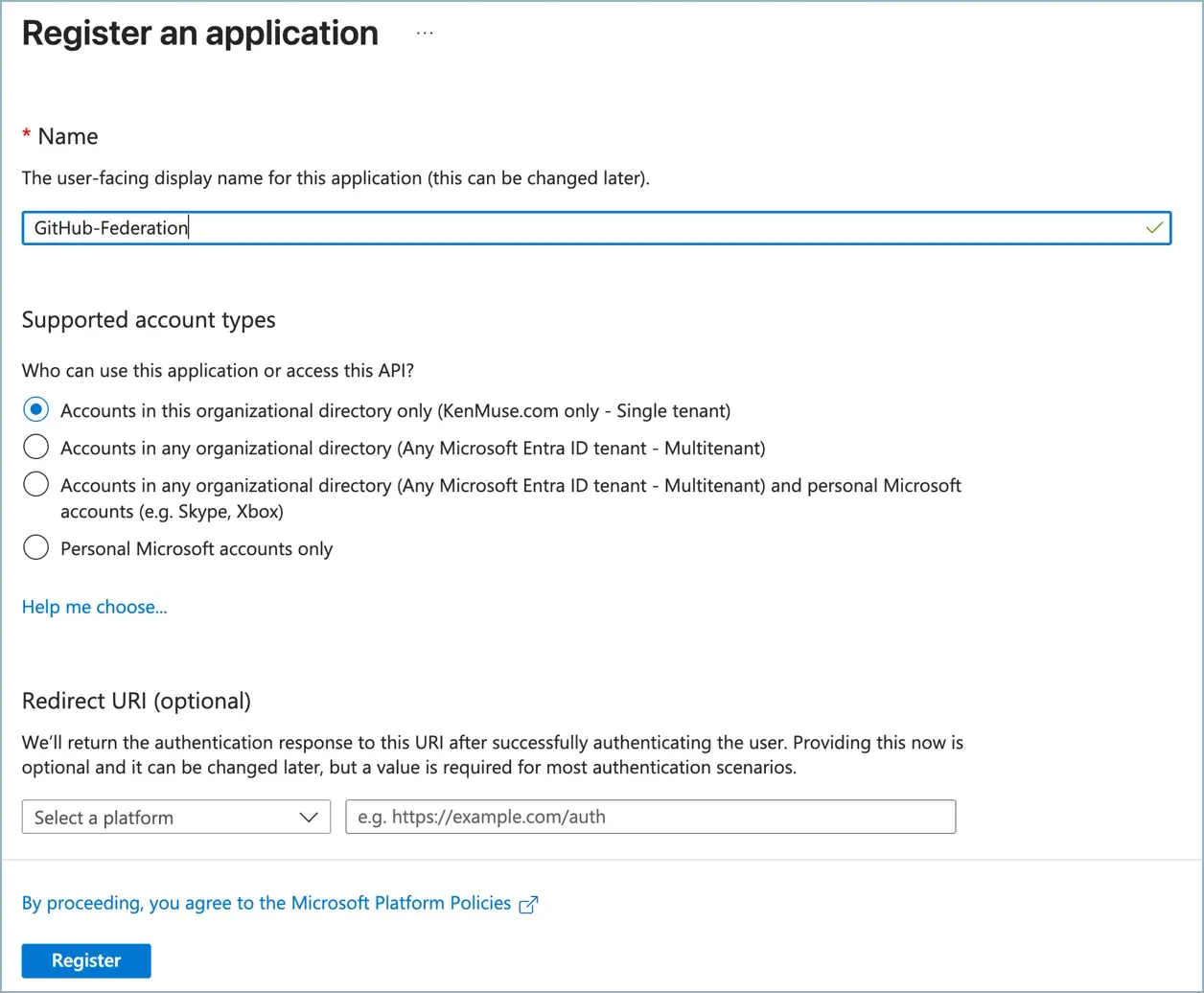
First, you need to open the Microsoft Entra ID resource in the Azure portal. Next, choose the Manage > App registrations blade and click + New registration. Then, provide a name for the application. Use the defaults for all of the other settings and click Register.
You will now see the Overview page for the new application. Make a note of the Application (client) ID and Directory (tenant) ID values, as you will need them later.
Choose the Manage > Certificates & secrets blade, and then select the Federated credentials tab. Click + Add credential to open the configuration pane. For the Federated credential scenario, select Other issuer.
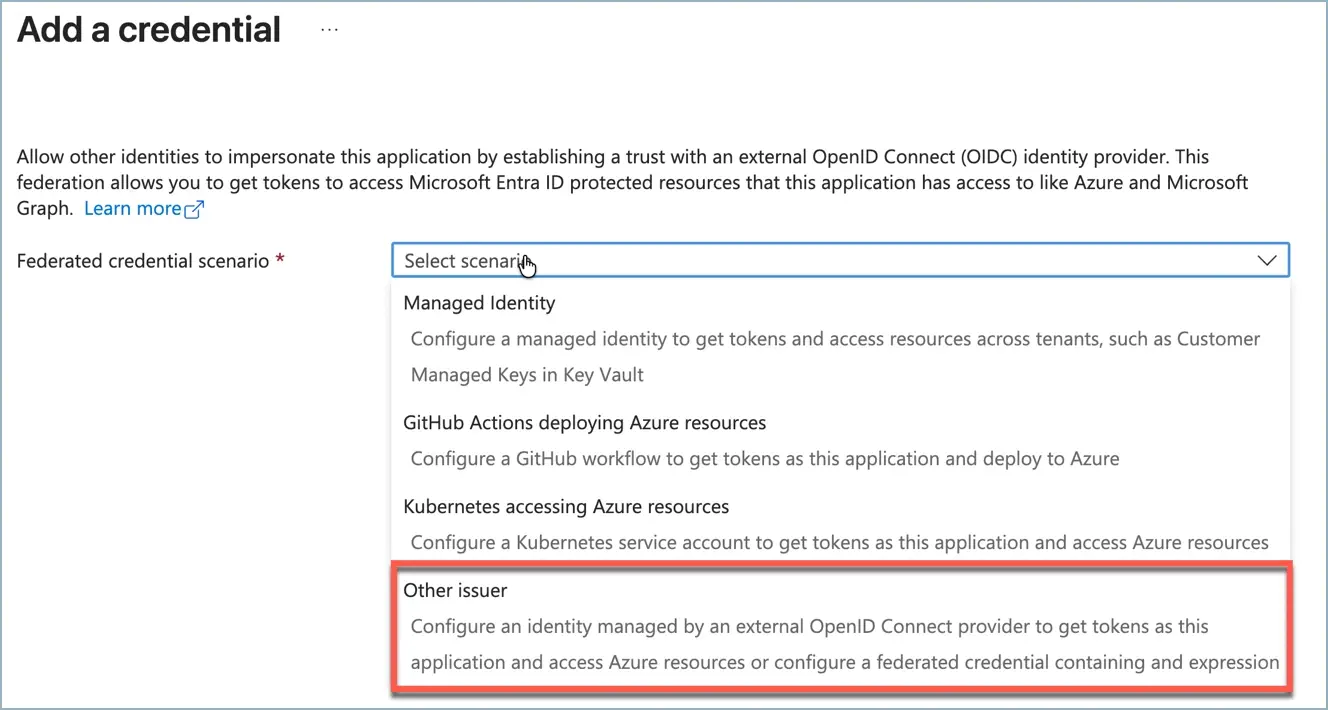
You can now provide the configuration for the federated credential. For the Issuer, enter https://token.actions.githubusercontent.com. For the type, select Claims matching expression(preview). Then, provide the matching expression. For example, to match the main branch of the token-test repository in the kenmuse organization, you could use:
1 claims['sub'] eq 'repo:kenmuse/token-test:ref:refs/heads/main'The result will look similar to this (with your particular claims expression):
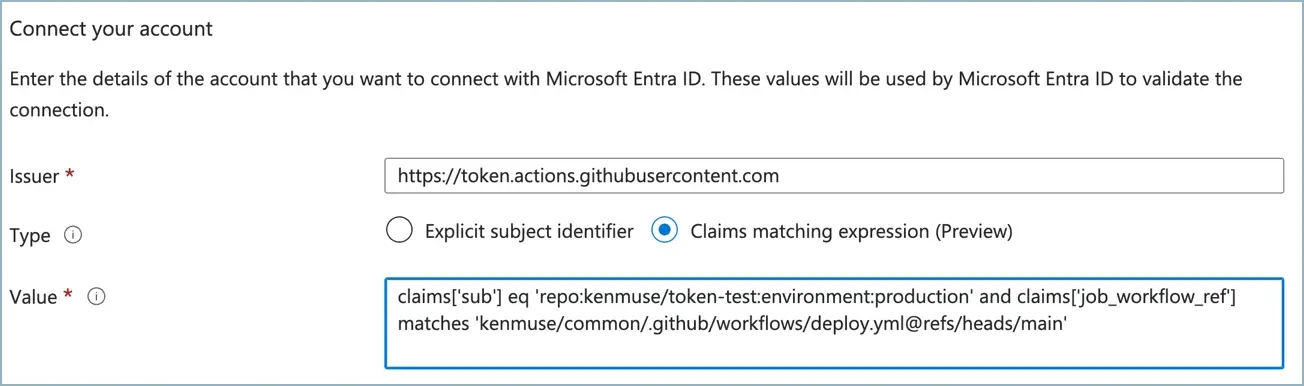
Finally, provide a name for the credential that helps you to understand its purpose, such as token-test-main. This field does not allow spaces and cannot be edited after it is created. If you need to change it, delete the credential and create a new one. The Audience already defaults to api://AzureADTokenExchange, so you can leave that and click Add to create the credential.
Creating a credential from code
Turns out that you can also programmatically add a federated identity credential using the Microsoft Graph API via REST.
The Azure az CLI also supports creating these credentials. This is useful if you want to automate the creation of multiple credentials or include it as part of your infrastructure-as-code setup. You just need to know the Object ID of the App registration, which you can find on the Overview page in the Azure portal. You can then use the JSON body to default the credential, making sure to escape the quotes properly. As an example:
 1   az rest \
 2     --method post \
 3     --url https://graph.microsoft.com/beta/applications/${OBJECT_ID}/federatedIdentityCredentials \
 4     --body "{\"name\": \"${CREDENTIAL_NAME}\", \"issuer\": \"https://token.actions.githubusercontent.com\", \"audiences\": [\"api://AzureADTokenExchange\"], \"claimsMatchingExpression\": {\"value\": \"claims['sub'] matches '${REPO_MATCH}' and claims['job_workflow_ref'] matches '${WORKFLOW_MATCH}'\", \"languageVersion\": 1}}"
Configuring access
The final step is to use the IAM blade to assign roles to the App registration. This is the same process you would use for assigning a user or service principal access to one or more Azure resources. Just choose the appropriate item, pick the Access control (IAM) blade, and click Add > Add role assignment. After that, the wizard will guide you through selecting the role and assigning members to that role.
When you’re adding a member, just search for the name of the App Registration. You can then select it and complete the wizard.
If you forget this step, the OIDC token exchange will fail with an authorization error, even if the token is valid and the claims match.
1 The subscription of '***' doesn't exist in cloud 'AzureCloud'.This is because the App registration cannot find any resources in the subscription that it can access. You can specify allow-no-subscriptions: true if you need to log in without any subscriptions assigned to the role.
Using the credentials in GitHub Actions
And now, the easiest part of the process. You just need to configure your GitHub Actions workflow to request the OIDC token and exchange it for an Azure access token. This requires three things:
- Permissions
- You need at least
id-token: writepermission to request the OIDC token. Consider adding this to the specific job that needs access, rather than the entire workflow. If you’re using a reusable workflow, you may need to add it to both the calling and called workflows.
- Proper configuration
- If you are using environments, make sure the job specifies the correct environment name, such as
environment: production. This ensures that thesubclaim in the OIDC token includes the environment name. If you are not using environments, then you are likely matching on a branch or tag name.
- Login
- The easiest way to authenticate is to use the
azure/loginAction. Here’s an example of how to set this up in a workflow:
This assumes that you have stored the Application (client) ID, Directory (tenant) ID, and Subscription ID in GitHub Secrets named
AZURE_CLIENT_ID,AZURE_TENANT_ID, andAZURE_SUBSCRIPTION_ID, respectively.
Go forth securely
Now you have a way to securely configure GitHub Actions workflows to access Azure resources using OIDC tokens with much more flexibility and security than before. By using Azure flexible federated identity credentials, you can reduce the number of federated credentials you need to manage while enforcing stricter access controls based on specific repositories, branches, and workflow files. This not only simplifies your identity management but also enhances the security of your CI/CD pipelines.
Although it is still in preview, you should try out this feature and explore how the changes make it easier to create secure deployments with GitHub Actions and Azure.