
You asked your AI coding agent to follow a ten-step workflow. It came back and said it was done. The output looks right. Tests pass. You move on. A week later, you notice something odd. The workflow was supposed to validate metadata against a schema before writing the file. But the metadata has an invalid field. The agent “succeeded” – it just skipped the validation step entirely.
This is more common than you think. AI agents are non-deterministic. Using the same prompt, the same instructions, and the same context can produce different execution paths on different runs. The model doesn’t execute your instructions like a script. It reasons about them, makes judgments about relevance, and then charts its own course. Sometimes that course matches what you intended. Sometimes it doesn’t. The only way to know which happened is to look at the logs.
Why this happens
To understand why the logs are so important, you need to understand one key fact. Agents are not deterministic. If you’ve read about why multiple subagents produce different results, you already know why this is true. Language models sample from probability distributions when generating text. The same prompt can lead to different reasoning paths, different tool-call sequences, and different outcomes across runs.
This means your instructions, skills, and prompts are not a program. They are influence. They shape the probability of what the model does next, but they don’t guarantee anything. A skill description that matches well today might not match tomorrow if the model applies different reasoning.
The practical consequence is simple: you cannot guarantee what an agent does. You can only guarantee what you give it (instructions, skills, hooks, context) and what you inspect afterward (the debug logs). The gap between those two – between intent and execution – is where bugs live. Reviewing the logs is the best way to identify when this is happening so you can fix what is, in essence, a bug in your agentic software.
The agent debug log is your source of truth
VS Code provides two complementary tools for understanding what an agent actually did: the Agent Debug Log panel and the Chat Debug view. Together, they show you every event that occurred during a session – which files were loaded, which tools were called, what the model saw, and what it decided to do.
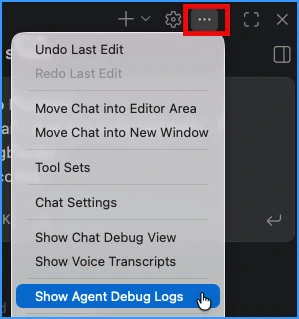
The Agent Debug Log panel is the primary diagnostic surface. You’ll need the github.copilot.chat.agentDebugLog.fileLogging.enabled setting turned on for it to work. Once you enable that setting, you must restart VS Code for it to take effect. Open it from the overflow menu (…) in the Chat view and select Show Agent Debug Logs, or run Developer: Open Agent Debug Logs from the Command Palette.
Once open, you’ll be in the logs view. In the upper left corner, you’ll see a breadcrumb trail to the logs. If you click the title, you’ll be taken to a view that shows aggregate details about the session and its token usage.

This dashboard gives you access to three views:
- Logs
- a chronological list of every event: customization discovery, tool calls, LLM (Large Language Model) requests, and errors. This is where you started.
- Agent Flow Chart
- a visual diagram of how agents and subagents interacted. This is a visual representation of the logs and the relationships between the steps.
- Cache Explorer
- a side-by-side diff of consecutive model requests that helps diagnose prompt-cache misses (where repeated requests fail to reuse cached prompt prefixes, costing extra tokens and time).
At the start of each request, the Logs view shows a cluster of discovery events such as Load Instructions, Load Agents, Load Hooks, Load Skills. These tell you exactly what the harness (the VS Code infrastructure that manages the agent) found and attached before the model started working. After that cluster, you’ll see the tool calls and LLM requests as the session progressed.
Select any row to expand its details. For a Load Skills event, you’ll see every path that was searched and which skills were found. For a tool call, you’ll see the exact input payload and the returned output. For a model request, you’ll see the full system prompt that was sent to the model. This is where you discover the gap between what you thought the model received and what it actually received. More importantly, you’ll see the model’s reasoning path – the sequence of thoughts and the model’s reasoning about the next step.
Common surprises
Once you start reading logs regularly, patterns emerge. Here are four situations I’ve encountered that all looked like success from the outside.
Your skill never loaded
You wrote a detailed skill (a reusable set of domain-specific instructions stored in a SKILL.md file that the agent can load when relevant) with meticulous step-by-step instructions. The agent produced output that seemed reasonable and had the expected results. However, the logs show that it didn’t follow your steps. It used its own general knowledge instead.
The Logs view tells the story. Expand the Load Skills event and check whether your skill appears in the list of loaded skills. Then look at the tool calls that followed. If there is no request to load the skill, it indicates that the skill’s name and description weren’t judged to be relevant to the current request by the model. Since it was never loaded into context, its instructions were never seen. The model did its best without them. In this case, “its best” happened to get the right results. You may not have noticed.
The fix isn’t to make the skill body longer or add more details about when to load it. The full body isn’t evaluated until after the skill is loaded, so those changes won’t help. The fix is to sharpen the skill’s description so the model recognizes it as relevant in more situations.
Think of the description more like a specific set of details that the model will use to decide when (and when not) to load the skill. It is not for anyone else or any other purpose, so treat it like guidance for the model’s decision making. Remove anything that is not absolutely relevant to the model making that decision. Remember that every phrase and word you use is acting like a keyword in a search engine. If it’s close enough to the current task, the model may load it.
There is one additional special case: when the skill competes with instructions or training. For example, if your skill provides details with how to search for specific contents in a file, the model may reason that it already knows how to search files. In that case, it may ignore the skill since it doesn’t reason it is necessary. The fix is to make the instructions clear about that being required (using words like **MUST**, **REQUIRED**, and **MANDATORY**). If this applies to specific files or extensions, consider a path-based instruction instead to force the instructions to be loaded.
Extra subagents re-ran your work
The Flow Chart view shows you spawned two subagents (separate model instances the agent delegates tasks to) where you expected one. Perhaps the agent did the same task twice – once in the main agent and once through a subagent. The timeline reveals duplicate tool calls: the same file read twice, the same terminal command executed in sequence.
This often happens when the description in an agent makes it compelling as a host for the current task. As a result, the model reasons that because the compelling agent wasn’t the starting point for the conversation, it should spawn it as a subagent to handle the work. The subagent starts with a fresh context, so it may reason that it needs to load the same files or run some of the same tasks to put essential details into its context.
There are three usual fixes for this. First, starting the task with an appropriate agent definition can avoid this situation. If the model starts with the right agent, it won’t reason that it needs to spawn a subagent for its work.
The second approach is to tune the agent’s description to make it less compelling for the task. If you don’t want it to ever be used as a subagent, you can also set disable-model-invocation: true in the agent definition. This will make it only loadable by the user selecting it.
The final fix applies when a skill is being loaded and run as a subagent because it has context: fork set in its SKILL.md frontmatter. When this is configured, Copilot will always create a new subagent to run the skill in a clean context. It will also pass it the original user prompt. That means that anything done up to the point of calling the skill is not available to the subagent. Since it gets the same user prompt, it will likely follow the same reasoning path and re-run the same tool calls. When this is not set, the skill runs using the context from the calling agent context.
Guardrail leaks
The agent hit a permissions error – a file it wasn’t supposed to write, a command it wasn’t supposed to run. Instead of stopping and reporting the error, it found an alternative path. Maybe it used a different tool that achieved the same outcome through a less restricted route.
From the outside, the task succeeded. From the Logs view, you will likely see the model acknowledge the issue, identifying what it can’t do. It then switched tactics to find a different way to achieve the same result. This can include launching a subagent with the appropriate skills and tools available or using a different tool that is allowed. For example, it can’t call the GitHub MCP (Model Context Protocol) server using a tool, but it can invoke it using a curl command in the terminal to invoke an API (or the MCP server you were trying to block). Or perhaps it realizes that it can get the same answer using the gh CLI.
This is a guardrail failure. You thought a boundary was defined. The agent proved it wasn’t – not by breaking through, but by walking around. Now you know the boundary needs to cover the alternative path too. The agent may need to be restricted from more tools, or it may need to be blocked from calling the other subagents by configuring the agents metadata in the appropriate .agents.md file. If it requires a specific tool, you may need to relax some restrictions to allow the tool to be called so that it doesn’t seek an alternative. In short, you need to remove the restriction (to allow the correct action) or add restrictions (to block the alternative path).
Scripts loaded into context, then re-executed
You wrote a shell script that the agent should run. Instead of just running it, the agent first called read_file to load the entire script into the conversation context. The context now contains a full copy of the script – consuming tokens – and the terminal output from actually executing it. Sometimes it even extracts the steps from the script and sends them individually to the terminal, leaving you with two copies of the content in your context.
The Logs view makes this obvious: a read_file tool call returning hundreds of lines of script content, followed by a run_in_terminal call executing the same content. The root cause is either that the file was referenced (for example with #file, a VS Code chat variable that attaches a file to your message) or that the model was not clear how to use the script and needed to read it to understand what it does.
The fix is to clarify the instructions in the skill or prompt so that the model knows that it just needs to execute the script. For example:
When you need to validate the code's performance, run the script `./scripts/task.sh {INPUT1}`,
passing the name of the class to test as a parameter. The results will be printed to the terminal.
You want to provide the model with enough understanding to directly execute the script. When it isn’t sure, it’s likely to call the script without any command line (or with --help) to understand what it does and what it expects as input parameters. When this fails, it will often fall back to reading the file.
Make sure that if a script or command line tool expects inputs or has multiple uses, the specifics are documented in your skill to minimize round-trips. At a minimum, implement support for --help (or provide help when no inputs are provided). The output is clear and concise about what is expected to call that code so that the model can then act on those results. Remember the model will read the outputs and reason about what to do next.
In some cases you may have to provide more explicit instructions. For example, “Do not read the script; it will add too much content to the context. Just run it in the terminal.” In this case, you are giving the model a direct instruction and a reason why it needs to ignore its normal reasoning. This can help prevent the model avoid reading the contents before executing them.
Other approaches
There are two other approaches to resolving these types of issues that you should know about.
If you need deterministic changes to context or restrictions to tools, consider whether a hook is appropriate. Hooks can run code before (or after) a model requests a tool, allowing you to enforce rules, inject context, or even block the request entirely. Because they run outside of the model’s reasoning, they are deterministic and can guarantee that the model will not be able to reason around them.
If you’re not sure what is happening or why, use /troubleshoot in the VS Code Chat view to ask targeted questions about a session: “Why did you skip my skill?” or “Which customization files were loaded?” This will add the logs for the session to the context, allowing the model to reason about its own behaviors. It can often pinpoint exactly where its reasoning diverged from your expectations. If you’re using a harness that doesn’t support this, you can attach your session logs to the chat manually and ask a model to analyze them for you. This is a great way to get a second opinion on what happened and why. You can even prompt the model to use a subagent to test out different hypotheses about what happened and the best way to fix it.
Beyond “done”
With an agent, “success” may be the start of a journey, not the end. Just because your request succeeded doesn’t mean that it followed your instructions. The model may have found a different path to the same result, or it may have skipped steps entirely. Until you know what the model actually did, you can’t be sure it will do the same thing next time or that you are going to keep getting quality results. As you refine your environment based on this understanding, you’ll get more consistent results and fewer surprises.
The agent logs are your window into this world. Start reading them.